Your AI. Your personal agent. For free.

You may not need to buy a new personal agent. The AI already on your computer can become an assistant that knows your work, helps coordinate it, and is reachable from your phone.
Connect the AI you already use with Shennian for free, with no extra subscription for this personal-agent interface. Your existing AI provider’s fees and usage limits still apply.
Why is everyone talking about personal agents?
Meta has introduced Muse, Manus 2.0 brings Cue, and OpenAI is gradually rolling out dots. They point toward the same shift: from a question-and-answer box to a personal AI that understands a goal and works toward it.
Meta Muse · Manus Cue · OpenAI dots
A new product is not the only starting point. If you already use computer-based AI such as Claude Code, Codex, or Cursor, you already have useful capabilities. Shennian gives them a personal-assistant interface: Shennian Steward.
Make the AI personal to your work.
Your projects, notes, plans, and past work live across your computer. If every conversation starts with another explanation of what you do and where things are, even a capable AI feels like a new colleague on their first day.
Start by asking the Steward to build an index of your materials. It does not need to move or change files: it records names, original locations, and access rules within the scope you approve. That gives it a map of your work and a place to look when questions arise.
Help me build an index so you understand my work better. First ask which materials to include; after I confirm, record only names and locations. Do not move or change files, or read their contents without asking.
You choose what it gets to know. One project or a set of materials is enough to start; you do not need to hand over your whole computer.
Give it a goal, not your constant attention.
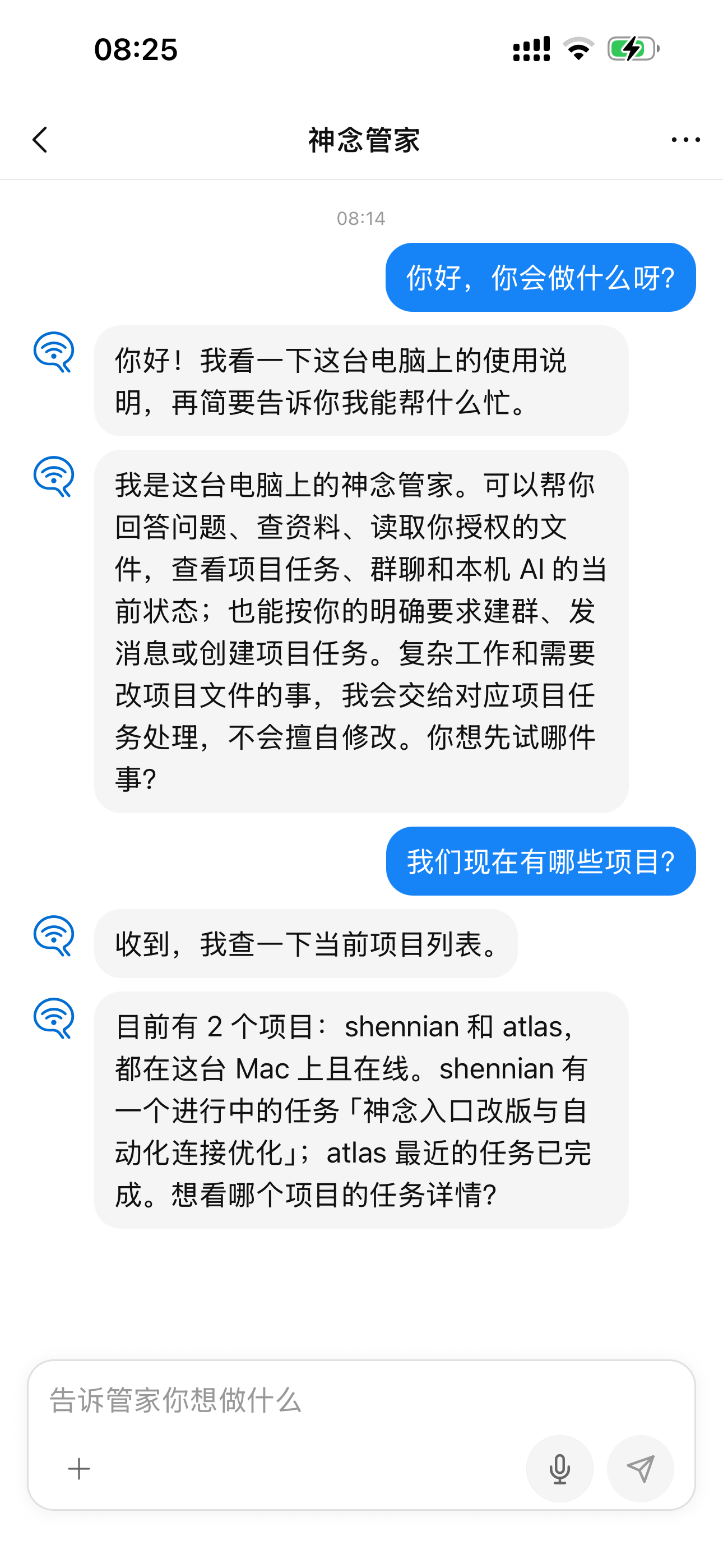
Ask: “What projects do I have? Which tasks are unfinished?” You can also ask it to find information, check a room, or send a message to a specific room you name.
Check progress on these two projects. Give me the results and decisions that need me first; I can look at execution details when needed.
For longer or more complex work, ask the Steward to create a task in a specified project for its AI to handle. Keep work in separate tasks while continuing to message the Steward, rather than squeezing everything into one ever-growing conversation.
The Steward chat focuses on concise messages rather than filling your screen with internal reasoning, file reads, and tool calls. Detailed results from longer tasks stay in project conversations, ready to open when needed. Unclear goals and additional permissions still come back to you.
Your computer does the work. Your phone keeps you connected.
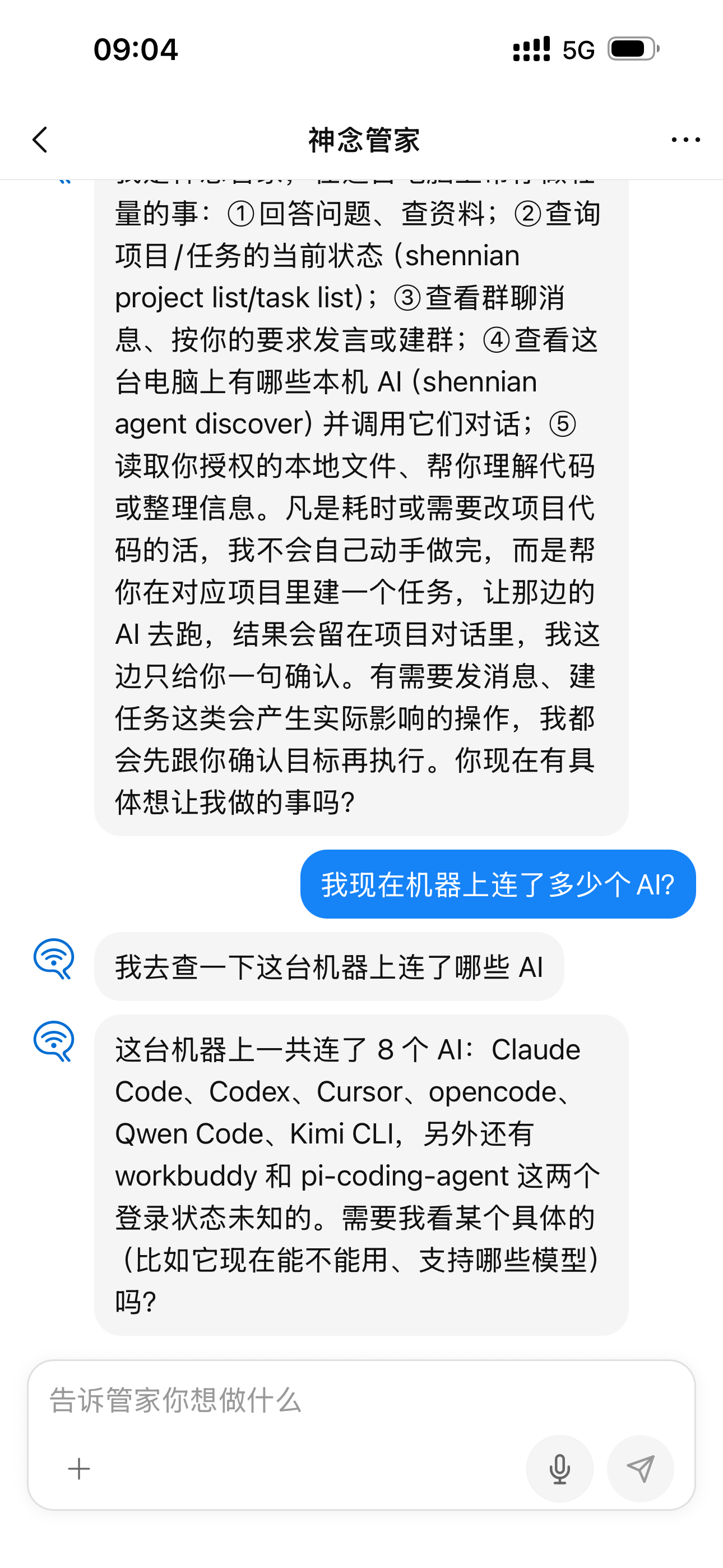
Leaving your desk does not have to mean leaving your AI behind. Connect your computer with Shennian, open the Steward in the mobile app, and choose your online machine and an available AI. Then message it to assign work, check progress, or continue a discussion.
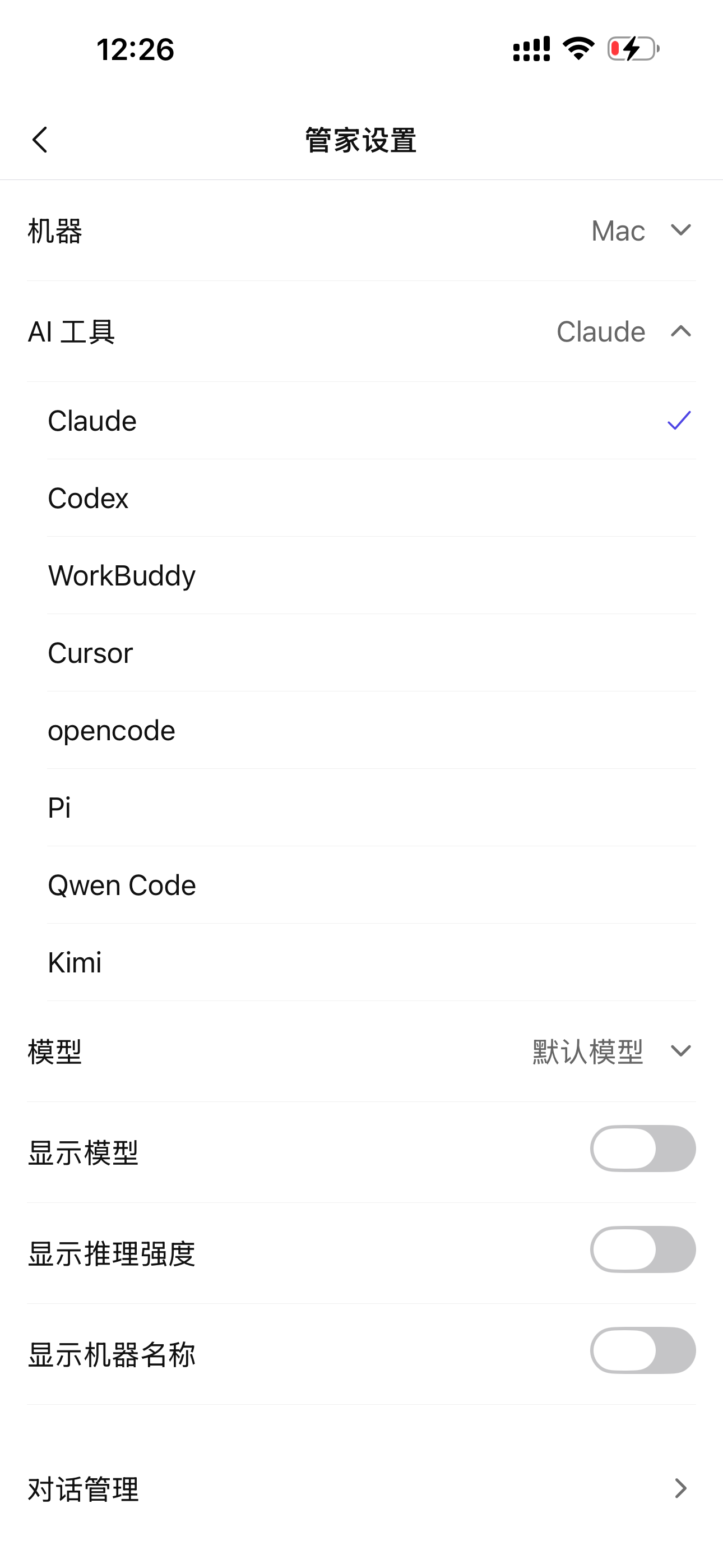
You are not tied to one AI. In Steward settings, choose among the tools and models connected on your computer. Use Claude for one conversation and Codex for another, with Shennian remaining your personal-assistant interface.
How does it work?
Shennian does not build another foundation model. It connects your existing AI, the materials on your computer, and the conversation on your phone. A request follows this path:
Message from your phone → Shennian connects to your computer → Your AI looks up information or creates a task → A reply reaches your phone
Connection: put your existing AI within reach
Shennian routes your phone message to the online computer you select. Shennian Client on that computer invokes an installed, signed-in AI tool to start or continue a Steward session. Execution stays on the computer; it does not move your computer onto your phone or take over an AI conversation you already have open.
Memory: an index, not infinite context
The Steward has a local workspace: AGENTS.md holds working instructions, and index.md holds pointers to your materials. Ask it to record names, locations, and access rules after you confirm the scope. It can then consult the index and read relevant source files as needed, instead of putting everything into every conversation. After switching AI tools, a new session can read the same map, but does not automatically inherit the previous model’s entire conversation state.
Execution: use tools and delegate longer work
The Steward uses Shennian commands to query projects, tasks, rooms, and local AI tools rather than guessing live status from memory. It handles lightweight queries directly. For lengthy work or project-file changes, your explicit request lets it create a project task for the appropriate AI to execute there. The index tells it where to look; tools provide current state and perform actions.
Replies: separate results from execution details
The Steward primarily uses shennian steward say to send user-facing messages. Your phone shows these as chat bubbles instead of streaming internal reasoning and tool logs. Detailed project-task activity stays in the project conversation. You can keep giving instructions, checking results, or answering questions without watching an execution window.
Start for free with the AI you already have.
No new computer is required, and you do not need to start by purchasing another personal-agent subscription. With a computer and an available AI, Shennian lets you set up this interface for free: your materials, your tasks, your choice of AI, and a way to reach it from your phone.
Shennian is free to use. Third-party subscriptions, API fees, and usage limits still follow the provider’s rules; exceeding your allowance may cost extra. Keep your computer on and online and your AI available. Continuing a conversation does not mean unlimited usage, tools, or file access.
An AI tool installed on your computer is not necessarily an offline model. Whether file contents are sent to a cloud model depends on the tool and service you choose.
Three steps to your own personal agent.
Step 1: Connect the AI you already use
Send this to the AI you already use on your computer:
Check for and reuse my existing Shennian installation. If it is missing, help me install and connect it using https://shennian.net/install.md. Do not install or sign in to other AI tools for me.
Step 2: Reach it from your phone
Install the mobile app from the Shennian website and sign in with the same account. Open Shennian Steward and choose the connected, online computer and an AI that is ready to respond.
Connect your computer and get the mobile app →Step 3: Let it get to know your work
I want you to be my personal AI. Help me build an index of my materials first. What scope do you need me to confirm?
You already have AI. Now make it your personal agent.