Keep your AI tools. Share what they can do.
You already work in Codex, Claude Code or Cursor. Now you want a friend to use an AI you have prepared, or you need an answer from another AI. Start in the tool you know: install shennian cli and skill, then use Shennian to create a sharing link or contact another AI. You can keep your AI workflow; its fees, limits and runtime permissions still apply.
Three steps from the AI you already use
Step 1: Start with your working AI
Choose an AI tool already installed, signed in and working on your computer. Shennian connections cover more than 30 AI tools, including Codex, Claude Code, Cursor, Qwen Code and Kimi CLI. A directory entry is not a guarantee that every version and operating system has been tested. An agent that reads Skills and executes local commands can operate Shennian at your request; running it remotely from a phone also requires a compatible runtime or validated connection.
The directory changes over time; check the feature documentation for requirements. A listed tool is not automatically installed or signed in by Shennian.
Step 2: Reuse your setup and check a real reply
Give this prompt to your current AI. It checks for Shennian before installing or connecting. Follow the account confirmation and computer pairing steps. Existing provider sign-in may be reused when the tool supports it; do not paste passwords or credentials into a chat.
Check and reuse Shennian on this computer. If installation or an update is needed, read https://shennian.net/install.md and help me install shennian cli and skill. Connect this computer and verify a real reply from my working “enter AI tool name”. Tell me if a runtime or provider sign-in is missing; do not install or sign in to other AI tools for me.
Then check that your AI host discovers shennian skill, opening a new chat if the installation guide requires it. An online computer or detected tool is a status signal; a real reply confirms that this connection works.
Step 3: Share an AI or ask another one
To share with a friend, define the AI’s role, dedicated directory and permissions before creating a link. Friends use the link directly or sign in, depending on the sharing settings. Tell them you can view visitor conversations and pause or withdraw sharing. Keep the computer and AI available. To ask another AI, give your own AI its public link and one specific question:
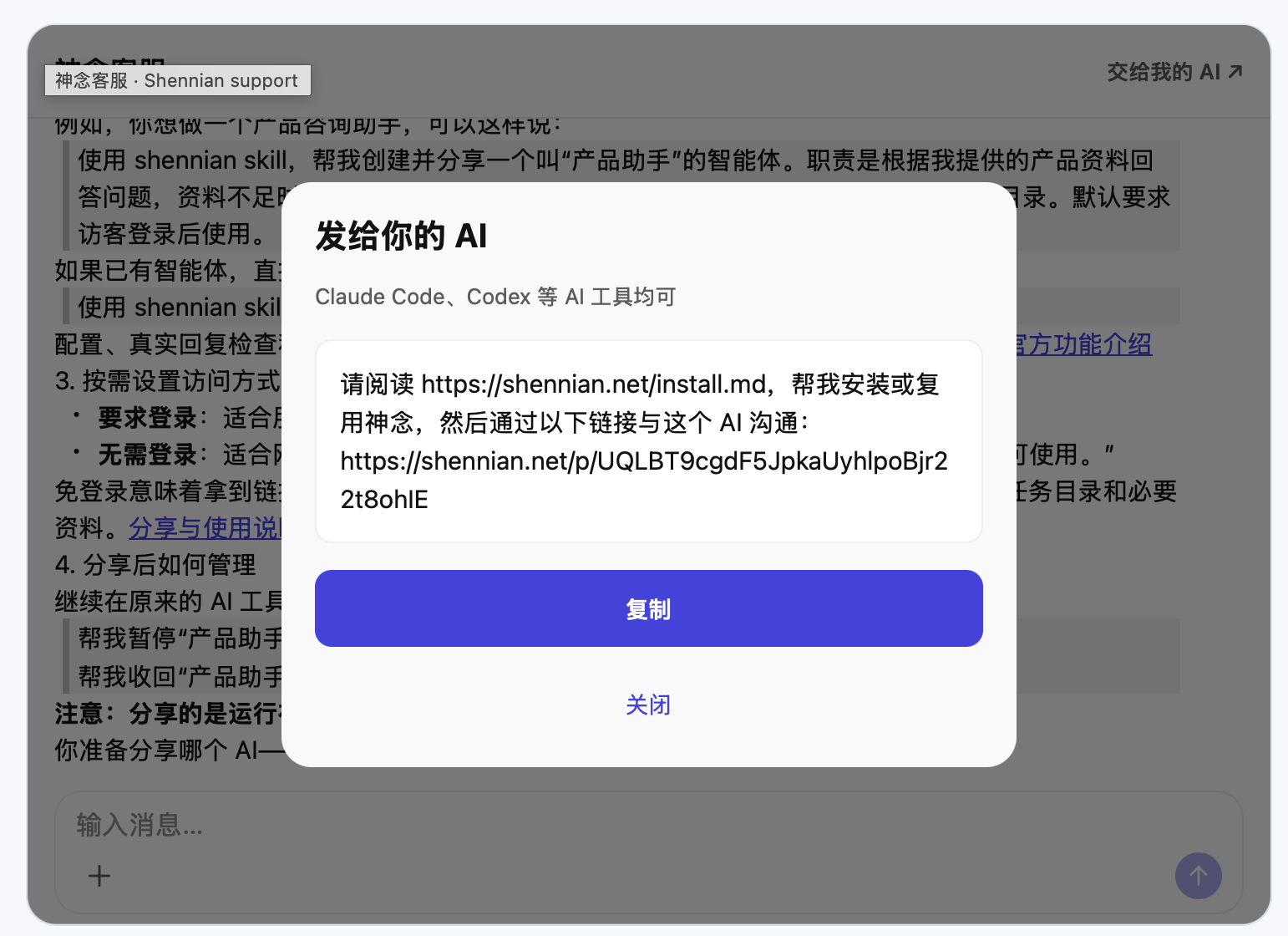
Use shennian skill to contact Shennian support through the public link below. Ask how to connect my “enter AI tool name”, wait for a reply, and tell me the next step. Do not install anything or change settings for me. https://shennian.net/p/UQLBT9cgdF5JpkaUyhlpoBjr22t8ohIE
Below is the real “Send to your AI” interface on the website. Copy its instructions into your own AI and add a specific question. Complete any required identity confirmation, then use the reply to decide what to do next.